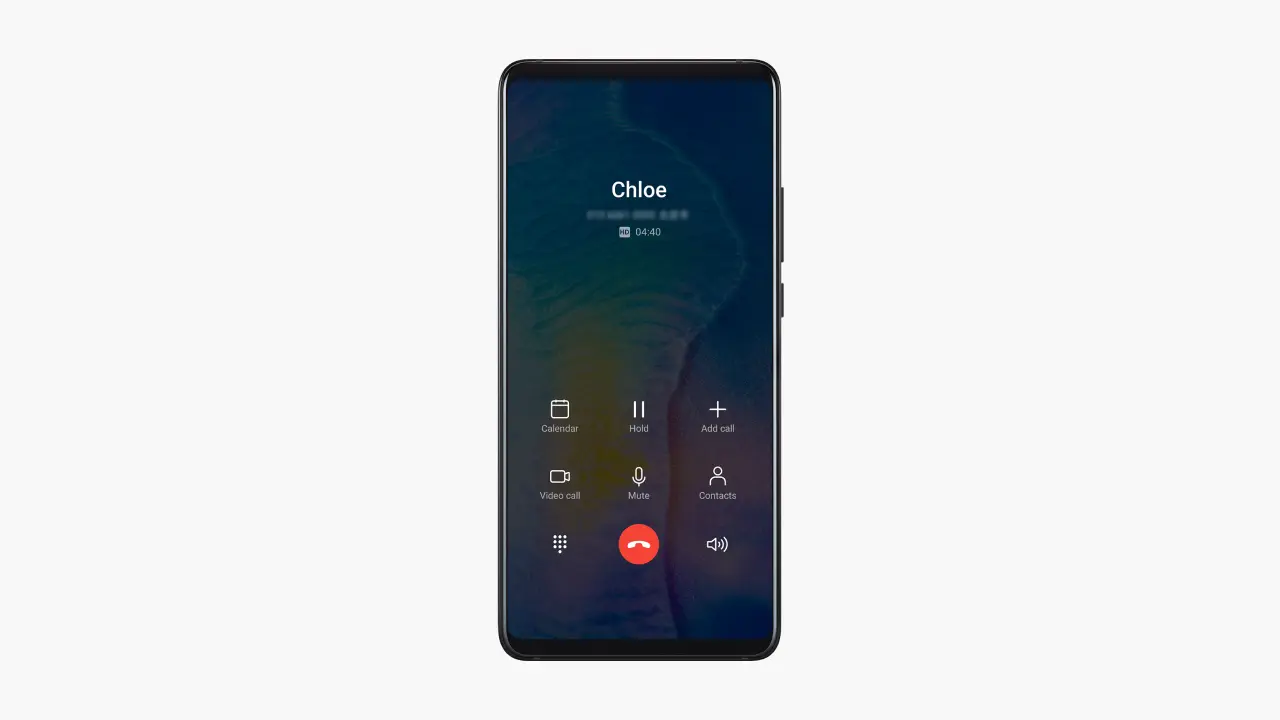
Huawei phone users want to use the call waiting feature to be able to answer incoming calls during a conversation. Although this feature exists on most Huawei phones, your operator must support it. If your GSM operator supports call waiting, you can activate the call waiting feature by following the steps below. Now let’s see how you can do this.
Call Hold on Steps on Huawei Phones
The steps you need to follow to activate call waiting on your Huawei phone are as follows:
- First, open Phone and go to Settings.
- Then go to More > Call waiting.
- If your phone supports dual SIM cards, go to the section labeled Settings (or similar) under SIM 1 or SIM 2.
- Enable the call waiting feature from here.
- Finally, contact your GSM operator’s customer service to verify that the call waiting feature has been enabled.
When everything goes well, you will have activated the call waiting feature on your Huawei phone. Now when you receive another call, tap the green phone icon to answer the call. To switch between calls, tap the double-headed arrow button or the call waiting icon in your call list.
How to Answer an Incoming Call During a Call?
Here is what you need to do to answer a call during an incoming call on Huawei phones:
- When you receive an incoming call while you are busy with a previous call, tap the green phone icon to answer.
- To switch between two calls, tap the two arrows pointing in opposite directions icon or tap a held call in the call list.
Huawei Call Waiting Not Working, What Can I Do?
Under normal conditions, the steps above should allow you to use the call waiting feature. However, some research we have done shows that there are users who cannot activate this feature despite trying everything. In that case, there might be a point we missed here.
First of all, the point you should not overlook is that your GSM operator must definitely support this feature.