Nowadays, iPhone users may encounter the “certificate not trusted” error for various reasons. This error usually occurs when connecting to a website, using an application, or accessing a corporate network. Certificates act as digital identities, ensuring your device connects to specific services securely. However, sometimes if these certificates are expired, invalid, or not defined as trusted, it may prevent your iPhone from accessing these services. This situation is seen more frequently if you are using a corporate device or have installed a certificate profile. Fortunately, there are several simple steps to resolve this issue. Below, we will cover the causes of the “iPhone certificate not trusted” error and how you can fix this problem in detail.
What is a Certificate Profile?
A certificate profile is a digital identity that ensures your iPhone connects securely to networks or services. For example, you may need to install a certificate profile to access corporate emails at your workplace. This profile proves your device is authorized and ensures secure communication. However, if these certificates are not defined as trusted, your iPhone may issue a warning.
If You Are Using a Corporate iPhone
If your iPhone is managed by a company, school, or organization, the cause of this error might be an installed profile. In this case:
- Go to Settings > General > VPN & Device Management.
- Check the installed profiles.
- If you see a profile, contact your organization’s IT department and ask them to reinstall the profile.
Manually Trusting a Certificate
To manually make a certificate trusted:
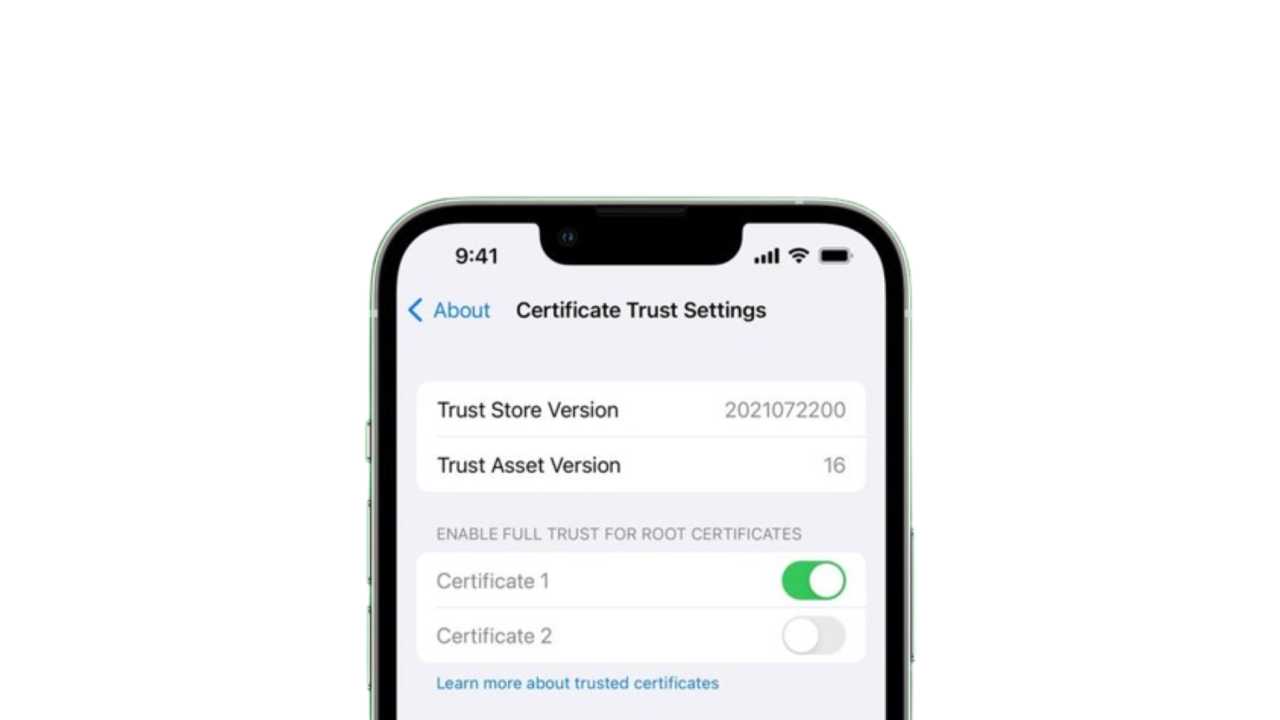
- Go to Settings > General > About > Certificate Trust Settings.
- Find the “Enable full trust for root certificates” option.
- Select the relevant certificate and mark it as trusted.
This step is especially important for certificates you have downloaded from a website or via email.
Delete Spam Calendars
Spam calendars and events can lead to certificate issues. To delete them:
iOS 14.6 and Later
Open the Calendar app, tap on the unwanted event, and select the “Unsubscribe from this Calendar” option.
Older iOS Versions
In the Calendar app, go to the “Calendars” tab, find the calendar you do not recognize, and use the “Delete” option.
Restart Your iPhone
Some software issues can be resolved with a simple restart:
- Press and hold the side or top button.
- Wait until you see the “slide to power off” slider.
- Turn off the device and turn it back on after a few seconds.
Update Your iOS
If you are using an old iOS version, you may experience certificate issues. To update:
- Go to Settings > General > Software Update.
- If an update is available, download and install it.
- Alternatively, you can also update via iTunes or Finder.
Contact Apple Support
If the steps above did not solve your problem, contacting Apple Support would be the best option. Apple can diagnose whether there is a hardware issue and replace your device if necessary.