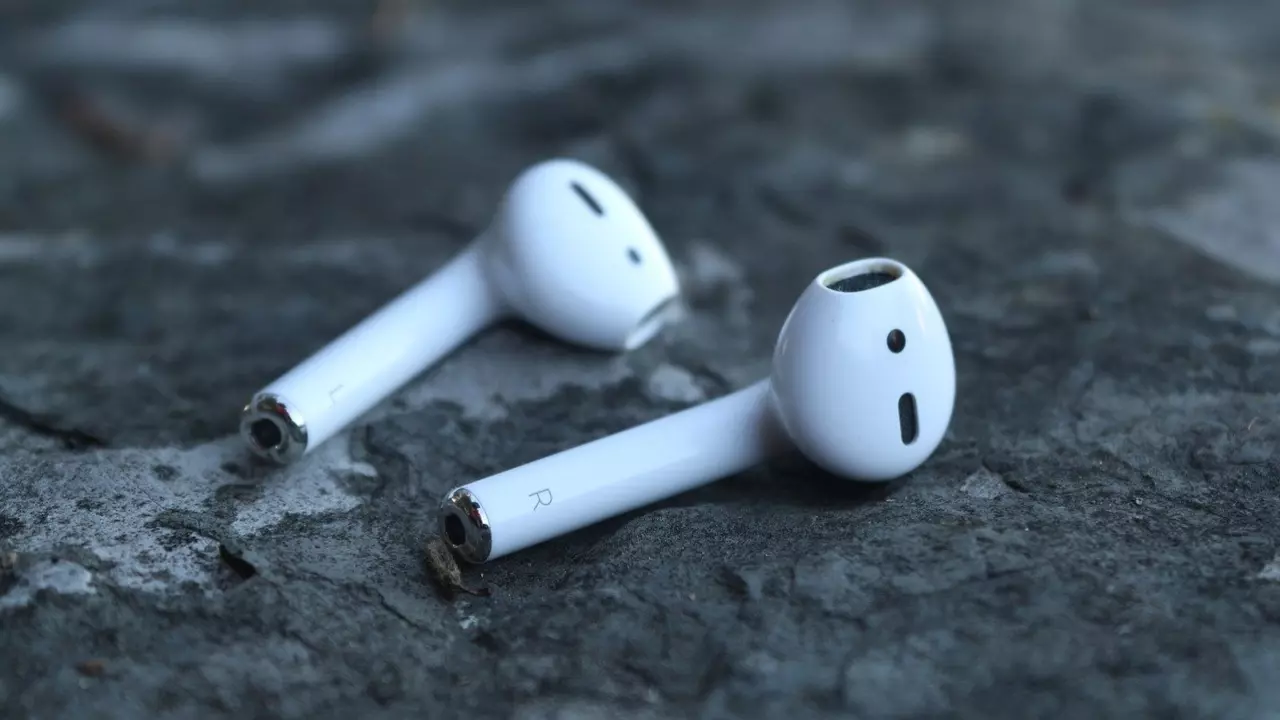
We have no doubt that AirPods are among the best headphones on the market. However, some users report feedback stating, “AirPods microphone is not working.” This situation can become much more troublesome, especially if you are someone who frequently makes phone calls via AirPods. Below, you will see some solution suggestions you can apply if the microphone on your AirPods is not working. Let’s take a look at what these are.
Why Is the AirPods Microphone Not Working? Some Reasons
- Dust accumulation: As a result of dropping your AirPods or using them in a dusty environment, dust may accumulate in the microphone holes.
- Low battery: Another common reason for the microphone not working is that your AirPods have run out of charge.
- Pairing issue: The microphone may not work due to reasons such as a slow Bluetooth connection, signal interference, or the device failing to establish a full connection. This issue can be encountered with wireless devices, especially when there is interference.
- Settings: The solution to many problems on smart devices involves making small changes in the settings. It is possible to experience this issue if the microphone is not selected correctly or if permissions are turned off.
How to Fix the AirPods Microphone Not Working Issue?
Put AirPods Back in Their Case and Try Again
Sometimes, the only thing a device needs is a little rest. This applies to AirPods as well. Put them back in their case and wait for about 30 seconds. To ensure the problem is over, turn Bluetooth off and on again, then connect the AirPods.
Finally, check if the microphone is working properly. If it hasn’t been fixed, you can browse the solution suggestions below in order.
Clean Your AirPods and Microphone
Dust and dirt accumulated in AirPods can prevent the microphone from working properly. Therefore, proper cleaning can allow the microphone to work again.
First, take a cotton swab (it must be dry) and clean your microphone with it. Also, if there is debris buildup, you might consider cleaning it with a soft-bristled brush to remove it.
Toggle iPhone Automatic Ear Detection On and Off
AirPods come with an automatic ear detection feature. This situation can sometimes cause the microphone not to work. Follow these steps to turn automatic ear detection on and off from Settings:
- Follow the Settings > Bluetooth sequence on your iPhone.
- Tap the ‘i’ icon next to your AirPods.
- Now turn Automatic Ear Detection off and then back on.
The steps above were for iPhone. To do the same process on Mac computers, follow these instructions:
- Select System Settings from the apple menu in the top left corner.
- Click on the name you set for your AirPods in the sidebar (you may need to scroll down for this).
- Finally, turn off Automatic ear detection.
Check Microphone Settings
AirPods have features that include the ability to customize many options. You can determine which AirPods microphone will be activated when you need it. To access this, you must follow the steps below:
- Open Settings, then select Bluetooth.
- Tap the ‘i’ icon next to your AirPods.
- Scroll down and tap on Microphone.
From here, change it to any of the following options:
- Automatically Switch AirPods
- Always Left AirPod
- Always Right AirPod
Play around with the settings here to see if the microphone becomes active again.
If you are already connected, you can also access AirPods settings directly from the Settings section. However, this feature is only available in iOS 16 and later versions.
Check for AirPods Firmware Updates
Some firmware updates offered by Apple may cause the AirPods microphone not to work. If Apple notices the situation, they will release a fix as soon as possible. Therefore, if you have a microphone problem with your AirPods, you should make sure you have received the latest update. You can reach detailed information about this on Apple’s official website here.
Ensure AirPods Battery Is Charged
Do you check your AirPods battery? If the battery is about to run out, it means it is time to charge your AirPods. After ensuring this, check if the problem persists. If the microphone still does not work, try the next method.
Forget AirPods and Reconnect
Some cache data or another issue you cannot detect may cause the microphone not to work. One of the best fixes for this is to remove (forget) the AirPods from Bluetooth pairings and reconnect them. To do this, you can follow the sequence Settings > Bluetooth > the ‘i’ icon next to your AirPods name > Forget This Device. Then connect your AirPods again and see if the problem persists.
Restart Devices Connected to AirPods
If the steps above did not solve your problem, you can also try restarting all the devices you have connected your AirPods to. If you have paired your AirPods with your iPhone and Mac computer, you can try turning these devices off and on again. Afterwards, check the microphone again. If this didn’t work either, there are a few more fixes you can do.
Reset Your iPhone’s Network Settings
Bluetooth is also a type of network that connects to your iPhone. If all the methods above could not solve the problem, it is time to reset your iPhone’s network. To do this, follow these steps:
- Follow the Settings > General sequence from your iPhone.
- Now select Transfer or Reset iPhone and tap Reset.
- Finally, select Reset Network Settings.
After completing the reset process, check your microphone again.
Turn iPhone Off and On Again
No matter what problem you are experiencing on a device, doing a restart (turn off and on) often works. This includes the iPhone as well. If you are experiencing issues with your AirPods, this situation might stem from any issue originating from the iPhone. Therefore, after turning your iPhone off and on again, activate your AirPods and check if the problem persists. Otherwise, take a look at the last method we mentioned.
Contact Apple Support
We hope you have been able to solve your problem up to this point. We have mentioned all the methods you can use regarding the AirPods microphone not working. If the problem persists, you might consider contacting the Apple Support team and reporting your issue as a last resort. Perhaps authorized personnel can make a pinpoint detection as to why the microphone is not working. For this, you can visit Apple’s official web page here.