iPhone StandBy Mode is a lock screen mode available in iOS 17 and later versions that activates when you place your iPhone in a horizontal position while charging. This mode transforms your device into a smart display, providing quick access to information. Especially useful when sleeping at night or charging at your desk, this mode displays items such as widgets, photos, and the clock in a large and clear format. Here is what you need to know about iPhone StandBy Mode:
What is iPhone StandBy Mode?
iPhone StandBy Mode is a feature that automatically engages when you turn your iPhone horizontally while charging. This mode allows you to use your device like a digital assistant or smart clock display. It consists of three main screens:
- Widget Screen: Displays interactive widgets in a large format (e.g., reminders or weather).
- Photo Screen: Displays selected photos or memories from your albums.
- Clock Screen: Offers time and date information in different themes (such as digital, analog, world clock).
(Note: The text below transitions to Apple Watch topics)
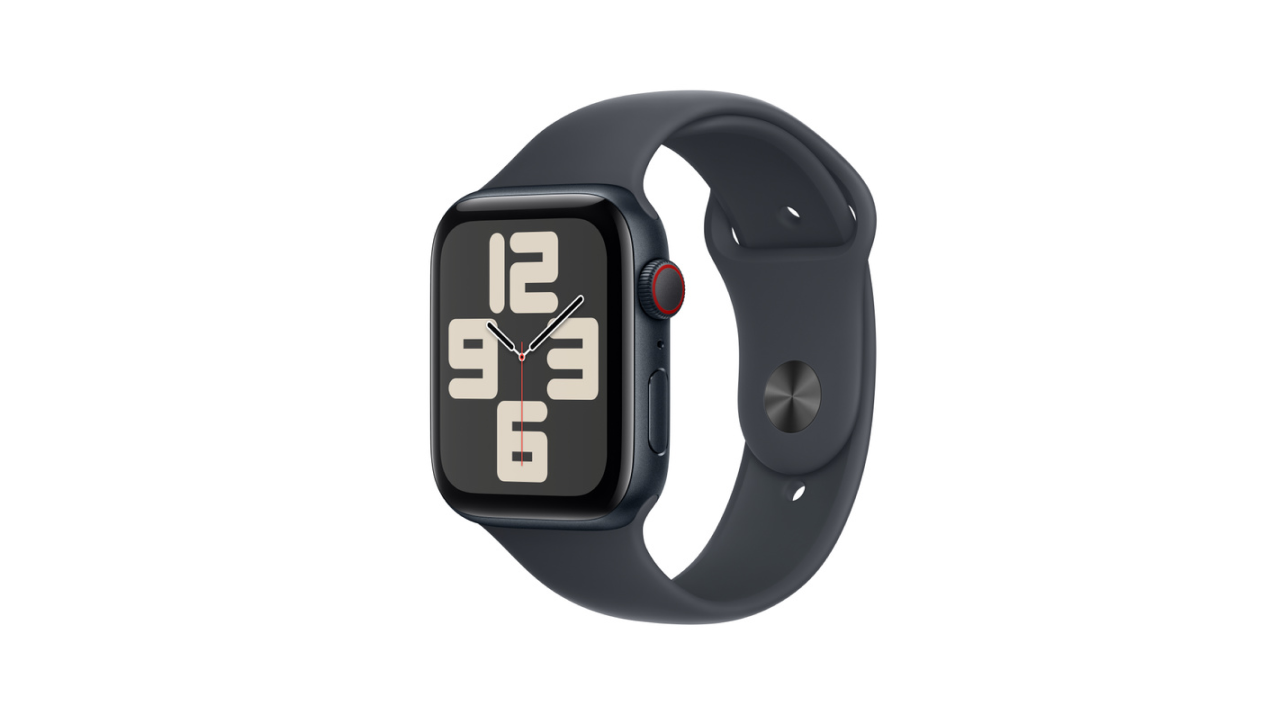
When mentioning smartwatches, Apple is one of the first brands that comes to mind; offering users both a health and communication-focused experience with the Apple Watch series. In particular, Apple Watch Cellular models allow for independent calls, messaging, and data usage without being tethered to an iPhone.
What is Apple Watch Cellular?
Unlike standard Apple Watch models, Apple Watch Cellular offers eSIM support. Thanks to this feature, even if your iPhone is not with you, you can:
- Make calls and answer incoming calls.
- Send and receive messages.
- Use the internet via mobile data.
- Use music streaming, map navigation, and other online applications.
Cellular models are referred to as GPS + Cellular, and the watch can connect to the operator network independently. This feature is particularly useful for those doing sports, traveling, or those who do not want to carry their phone with them.
Apple Watch Cellular Models
Currently, Apple has Cellular versions available for the Apple Watch SE (2nd Gen), Apple Watch Series 9, and Apple Watch Ultra 2 models.
How to Use Apple Watch Cellular?
To use Apple Watch Cellular, you must pair it with an iPhone and create an operator subscription. Here is the step-by-step usage process:
Pairing with iPhone
- Pair your Apple Watch with your iPhone.
- Open the Apple Watch app and go to the “Cellular” tab.
- Activate the eSIM service offered by your operator.
Things to Consider
The iPhone and Apple Watch must be on the same operator. You may need to enable roaming for use abroad. Some operators only offer full support in specific cities.
(Note: The text returns to iPhone StandBy Mode topics)
This mode works more efficiently on iPhone 14 Pro, 15 Pro, 16 Pro, and 17 Pro models with the “Always-on Display” feature.
How to Turn On iPhone StandBy Mode?
Follow these steps to activate StandBy Mode:
Charging and Positioning
Connect your iPhone to a MagSafe, wireless (Qi), or Lightning charger. The device must be locked and in a horizontal position. Ideally, use a slightly angled charging stand rather than a flat surface.
Enabling in Settings
- Open the Settings app.
- Tap on “StandBy”.
- Toggle the “StandBy” switch to the green (ON) position.
Automatic Switching
When the conditions above are met, the mode starts automatically.
Night Mode reduces eye strain by turning the screen to a red tone when the environment is dark. You can turn this off by following the path Settings > StandBy > Display > Night Mode.
How to Keep iPhone StandBy Mode Always On?
To ensure the mode stays on continuously, check the following:
Screen Settings
Go to Settings > StandBy > Display. Set the “Turn Display Off” option to “Never”.
Low Power Mode
Settings > Battery > Low Power Mode must be off. Otherwise, the screen will turn off after a short time.
Always-on Display
On iPhone 14 Pro/15 Pro/16 Pro models, this feature works by default. On other models, the screen may time out.
Extra Tip: You can prevent the screen from turning on unnecessarily during the night by turning off the Motion to Wake feature (Settings > StandBy > Display > Motion to Wake).
iPhone StandBy Mode Not Working, What is the Solution?
If you are experiencing issues, try the following steps:
Basic Checks
- Make sure your iPhone is running iOS 17 or a later version.
- Check that the charger is working and the device is locked.
- Ensure the device is in a completely horizontal position and not on a flat surface (it needs to be propped up).
Verifying Settings
Confirm that the mode is ON via Settings > StandBy.
Battery and Power
Turn off Low Power Mode. Low battery health can also cause issues.
Model Compatibility
On models without the Always-on Display feature, the screen will eventually time out.
Restart
Try restarting your iPhone.
MagSafe chargers ensure the mode works more consistently. If you are having trouble with standard wired charging, use a different charger or a wireless charging stand.