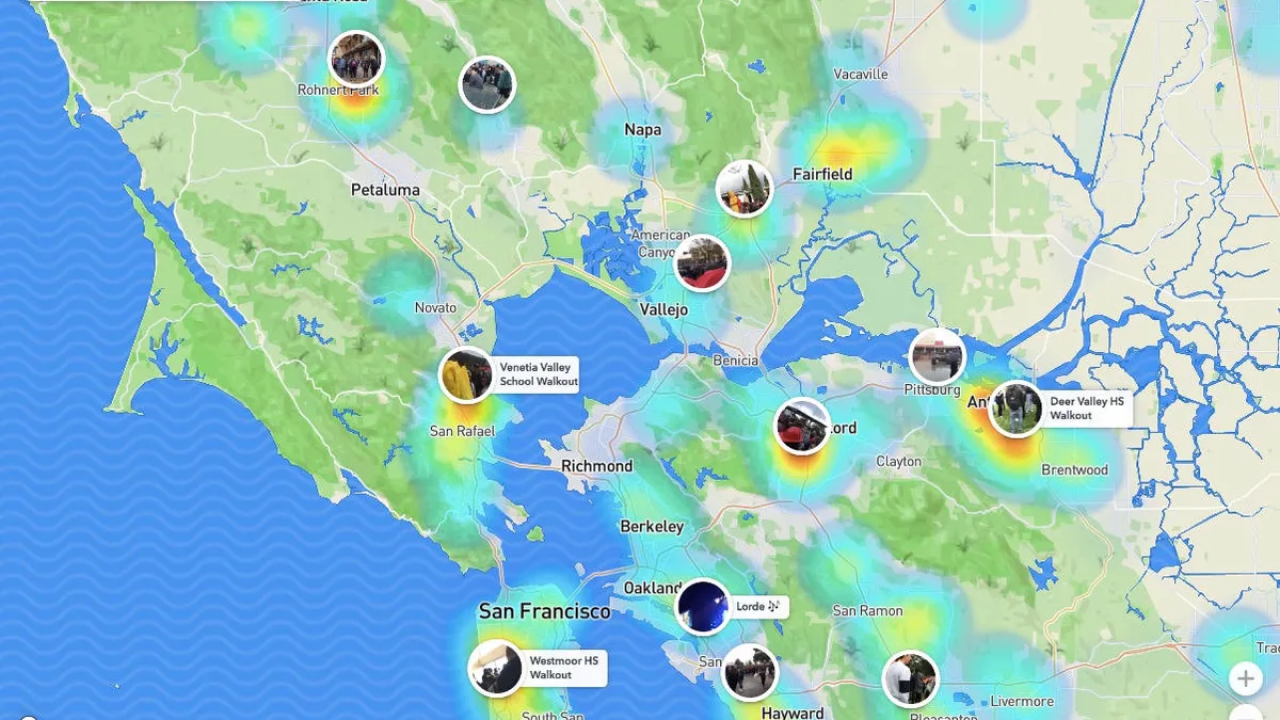
Snap Map is a great way to connect with friends and contacts by sharing and receiving your location information. It also allows you to learn about activities and events happening near you. However, sometimes this unique feature can break, and you may encounter the Snap Map not working issue. No need to worry; you can try a few quick fixes and get it back to normal.
Reasons Why Snap Map Is Not Working
When Snap Map is not functioning properly, several factors might be at play:
- Location Services Disabled: If location services are turned off on your device or in the Snapchat app, Snap Map cannot track or display your location.
- App Permissions: Snapchat needs permission to access your location. If these permissions are denied or revoked, Snap Map will not work.
- Outdated App Version: Running an old version of Snapchat can cause various features, including Snap Map, to malfunction. Keeping the app updated ensures compatibility and bug fixes.
- Internet Connection Issues: A weak or unstable internet connection can prevent Snap Map from loading or updating your location in real-time.
- Server Issues: Sometimes, Snapchat’s servers may experience downtime or technical difficulties that can affect Snap Map’s functionality.
- Ghost Mode Enabled: If Ghost Mode is on in Snap Map settings, your location is not shared, giving the impression that Snap Map is not working.
- Device-Specific Issues: Certain device-specific issues like low storage, software bugs, or conflicting apps can prevent Snap Map from working.
- Snapchat Account Issues: Account-specific problems such as not being logged in, being temporarily banned, or incorrectly configured account settings can affect Snap Map’s functionality.
Why Does My Snapchat Location Show Somewhere Else?
Since the Snap Map feature is not designed to work this way, there could be multiple reasons behind this issue. The most common reason behind this is not being online. When your smartphone does not have internet access, location services do not update correctly.
Even with limited internet access, you may encounter the issue where your location shows information from another place. In most cases, this location data shows where you were last. If your Snapchat location isn’t telling anyone your real-time location, you might have Ghost Mode turned on.
When Does Snap Map Update?
Since Snapchat does not work with background location updates, it always shows the latest location data on Snap Map. Usually, Snapchat updates Snap Map data every time you open the app. These details also update whenever you refresh the map page within the Snapchat app.
However, if you are not opening the app, the last location stays on Snap Map for approximately 5 hours. Therefore, if you want Snap Map to always keep your latest location up to date, you need to open it frequently so that location data is continuously shared with Snapchat location servers.
4 Possible Fixes to Try If Snap Map Is Not Working or Showing the Wrong Location
There are many situations where you might have accidentally changed a setting that caused the Snap Map feature to malfunction on your device. The best part about this is that there are multiple ways to fix the problem, and it can be done very easily. Below are the best 4 scenarios you can try, and hopefully, one of them can get your Snap Map working again.
Check Phone Location Settings
The most common cause of this issue is corrupted location settings. These are not always off in the settings, as some smartphones also have a location service button in the notification panel control center. Therefore, you need to check if you have turned this off on your smartphone. Below are the steps you can follow to check the location setting status on an iPhone and fix the issue:
- Step 1. Open Phone Settings, search for location, or manually go to Privacy > Location Services.
- Step 2. If the function is off, turn it on to ensure your phone location service is working.
Fix 2. Enable Snapchat Location Permission
If the previous method didn’t work for you, you might have turned off location permission for the Snapchat app. The steps to enable this will also differ across different devices, and below are the steps iPhone users can follow:
- Step 1. Open Settings to go to Snapchat settings.
- Step 2. Check the Location permission there. Set it to “While Using” for the best experience.
Fix 3. Check and Disable Ghost Mode
If the problem persists, you might have enabled Ghost Mode in your Snapchat app. Even if your location is on and Snapchat has permission to use it, the Snap Map function may not work, and it is quite easy to turn it off with the following steps.
- Step 1. Open the Snapchat app and go to Settings.
- Step 2. Go to the Privacy control tab.
- Step 3. Check if Ghost Mode is on. Turn off Snapchat Ghost Mode there.
Update Snapchat to the Latest Version
If none of these worked for you, the issue is not in the settings. You might still be using an outdated version of the Snapchat app. Sometimes servers stop supporting location services on old versions, causing such issues.
The only solution you can try now is to go to the app store and update Snapchat to the latest version. If that doesn’t work, try uninstalling and reinstalling the Snapchat app.